This guide is designed to help players prepare for their upcoming Pokémon Champions VGC Tournaments.
Event Preparation:
Prepare for your tournament before it starts!
Before you attend an event, you'll need to register! In order to register for an event, your RK9.gg Player Profile must contain all required information. Please note that different events may have different requirements based on the game. Because of high demand for events, it's important to make sure all this information is complete before registration open. If you're not sure how to create or update your Player Profile, check out our article about editing your profile.
Once you've registered for a tournament, you can view event information and deadlines on your Player Tournament Dashboard. This is where you'll find your event confirmation, team list submission deadline, and when your tournament starts! You will use this page throughout your event.
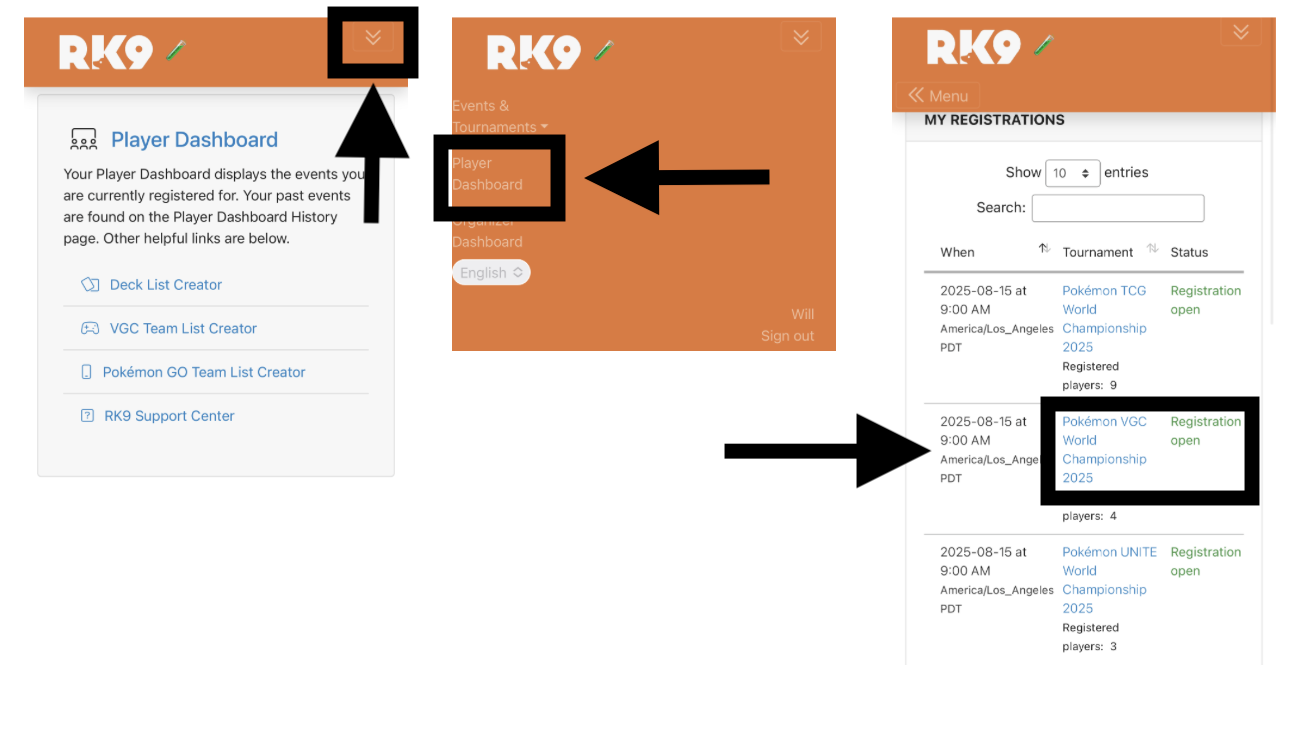
To get to the Player Tournament Dashboard, go to your Player Dashboard and select the event you're registered for.
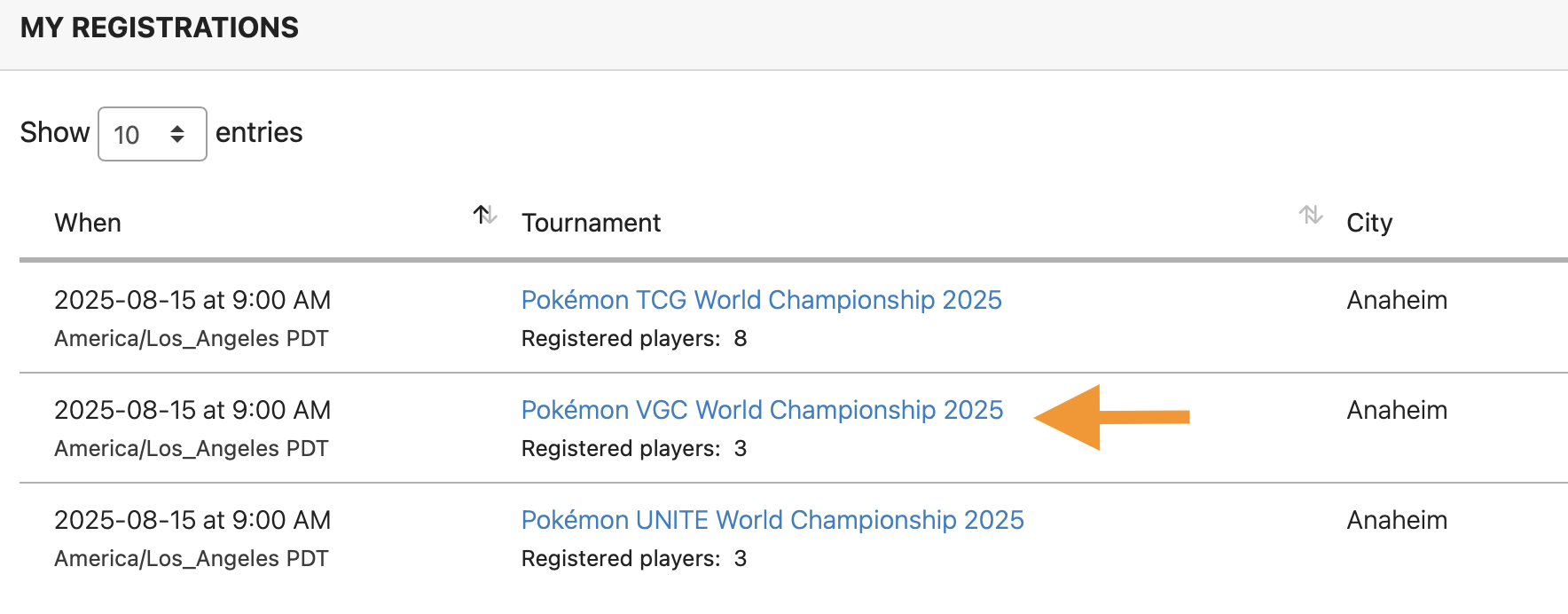
Next, review your Tournament Milestones for important event information.

- Team List: Before submitting your list, make sure it's legal for the tournament you're playing in! For more information on tournament formats, you can review Section 2.2 Regulation Changes of the Play! Pokémon Video Game Championships Tournament Handbook, available at the Play! Pokémon Rules & Resources website. Please note: while the section is accurate at the time of publishing this article, it may change before the article is updated!
- Nintendo Switch Console and Game Updates: Be sure that your Nintendo Switch internet settings are set to Automatic.
- It's important that you have the latest version of the Nintendo Switch system software installed on your device. Failure to update before a tournament can lead to delays or penalties! More information about updating your Nintendo Switch software can be found on the Nintendo website. Information for the Switch 2 can be found here.
- Information about updating Pokémon Champions can be found on the Nintendo website.
- Your Own Controller: Per Section 3.3 of the Play! Pokémon Video Game Championships Tournament Handbook, competitors are permitted to bring their own officially licensed wired controller at organizer discretion. Wireless controllers are not permitted.
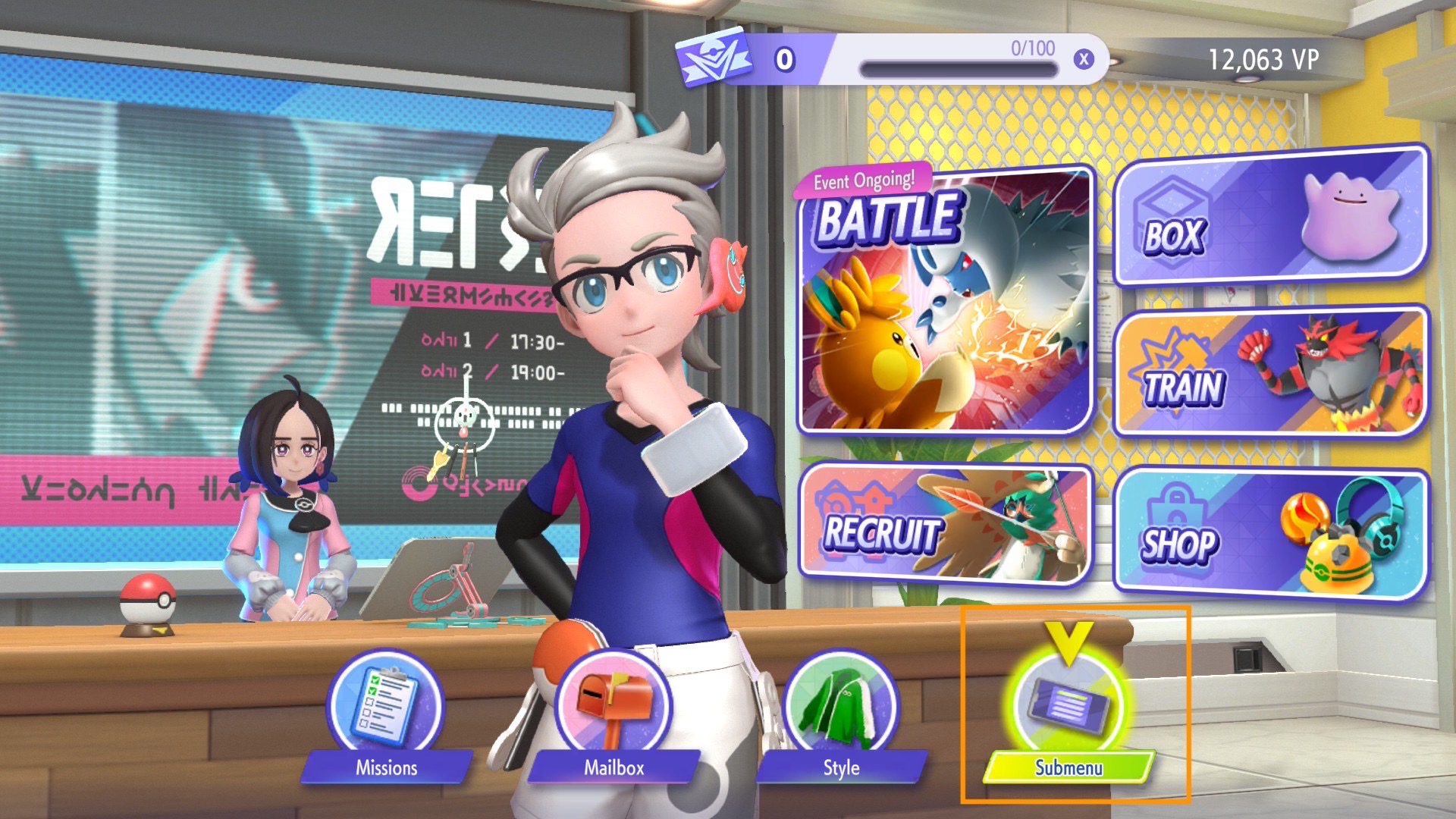
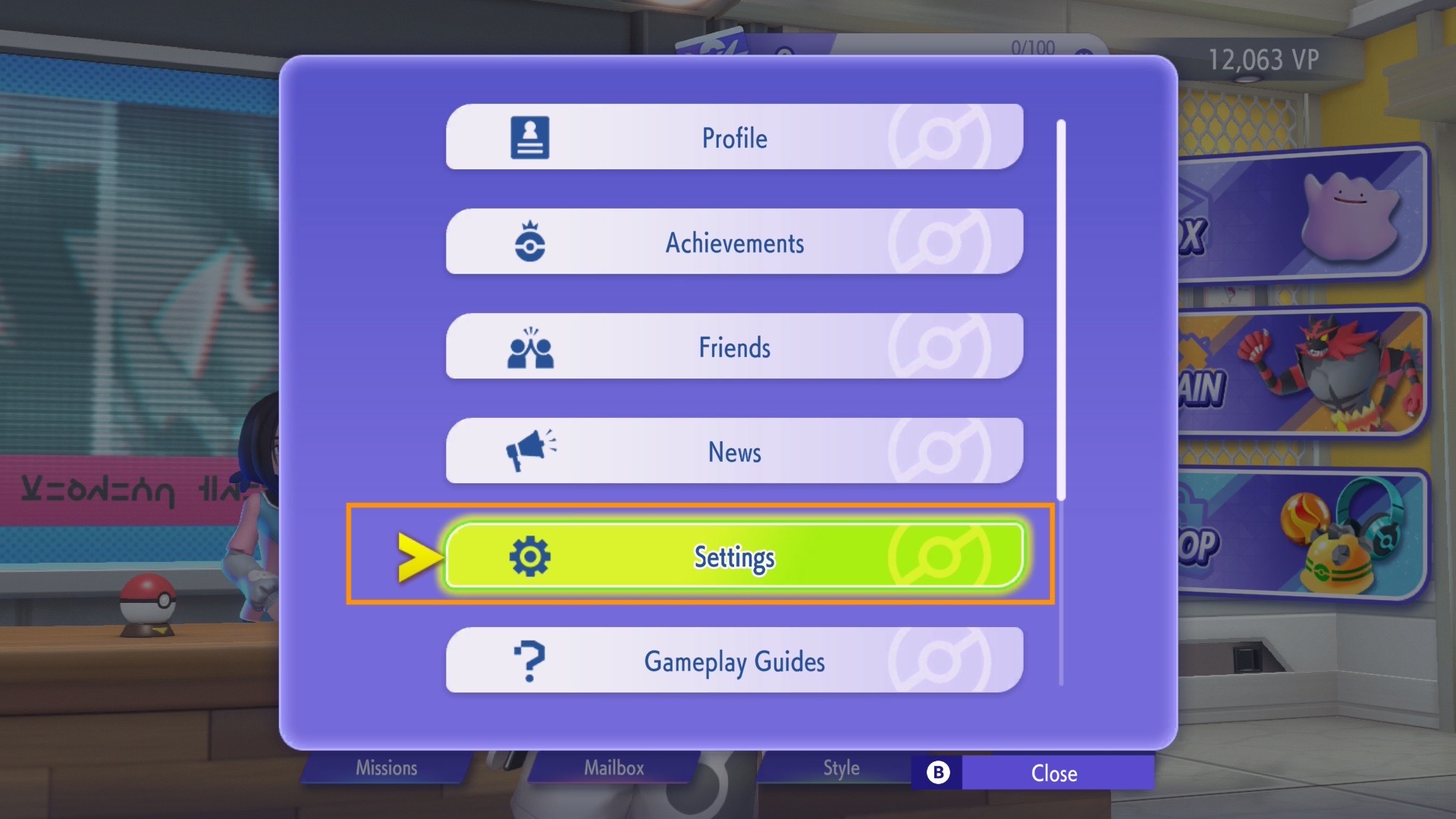
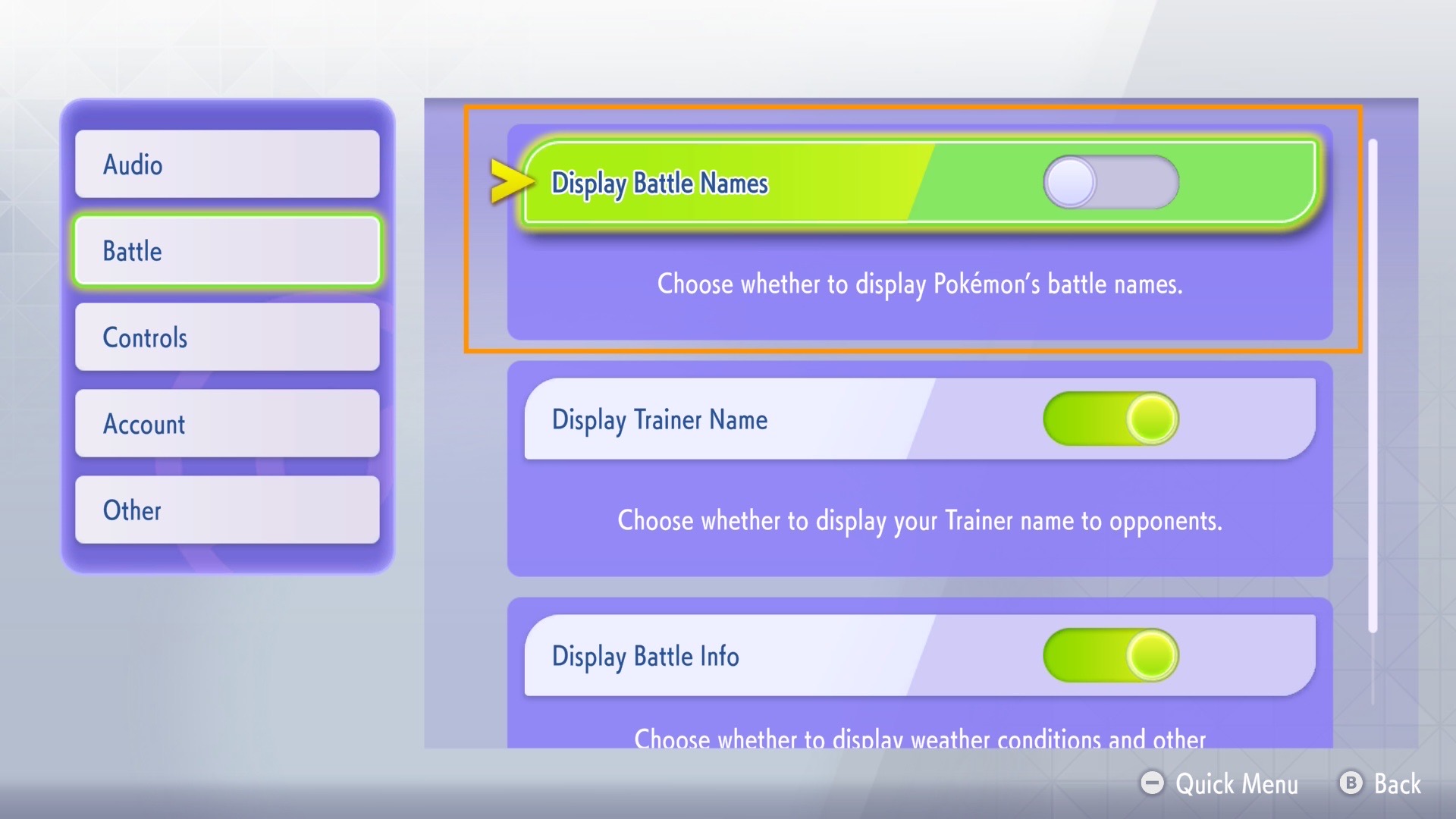
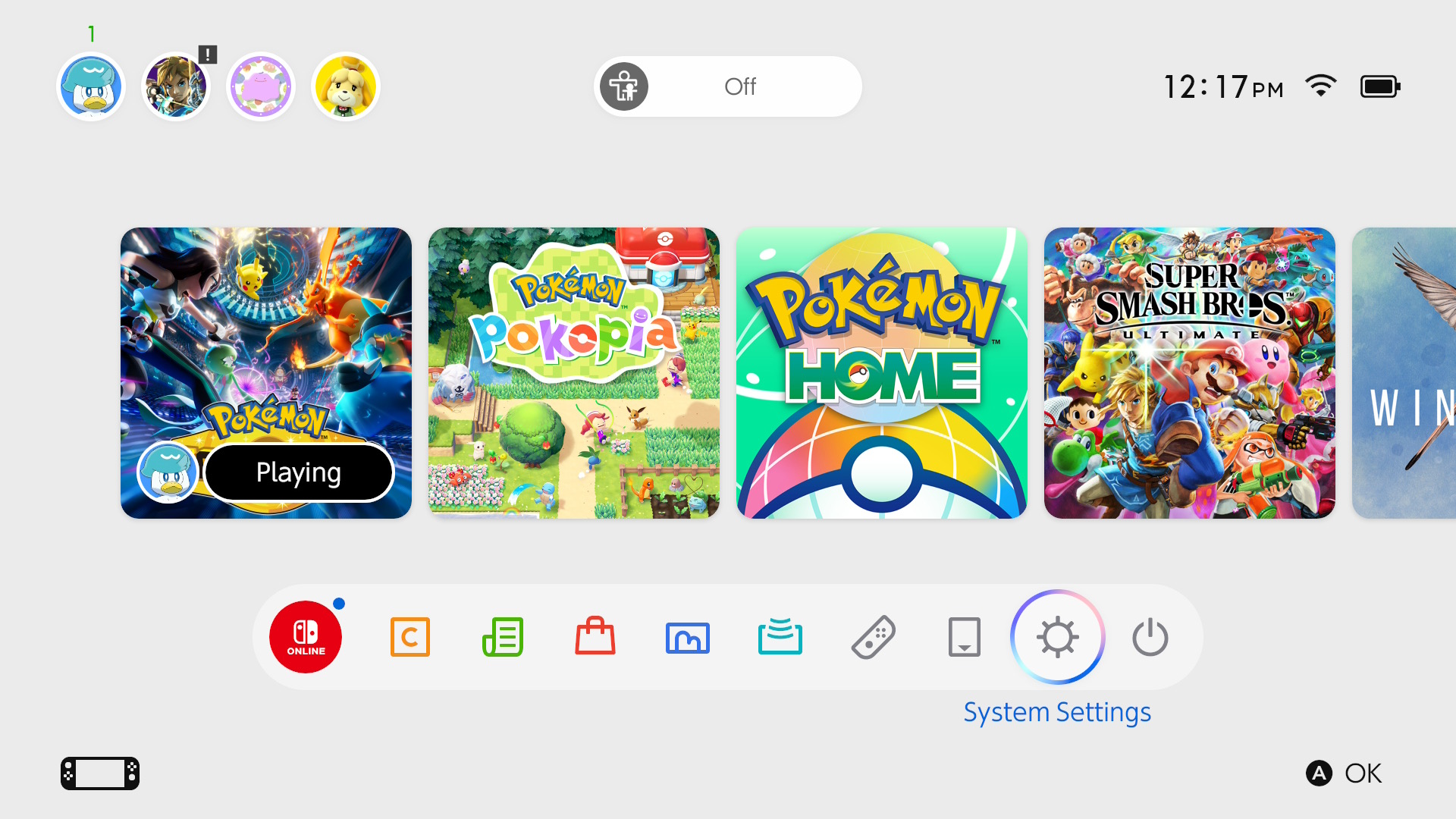
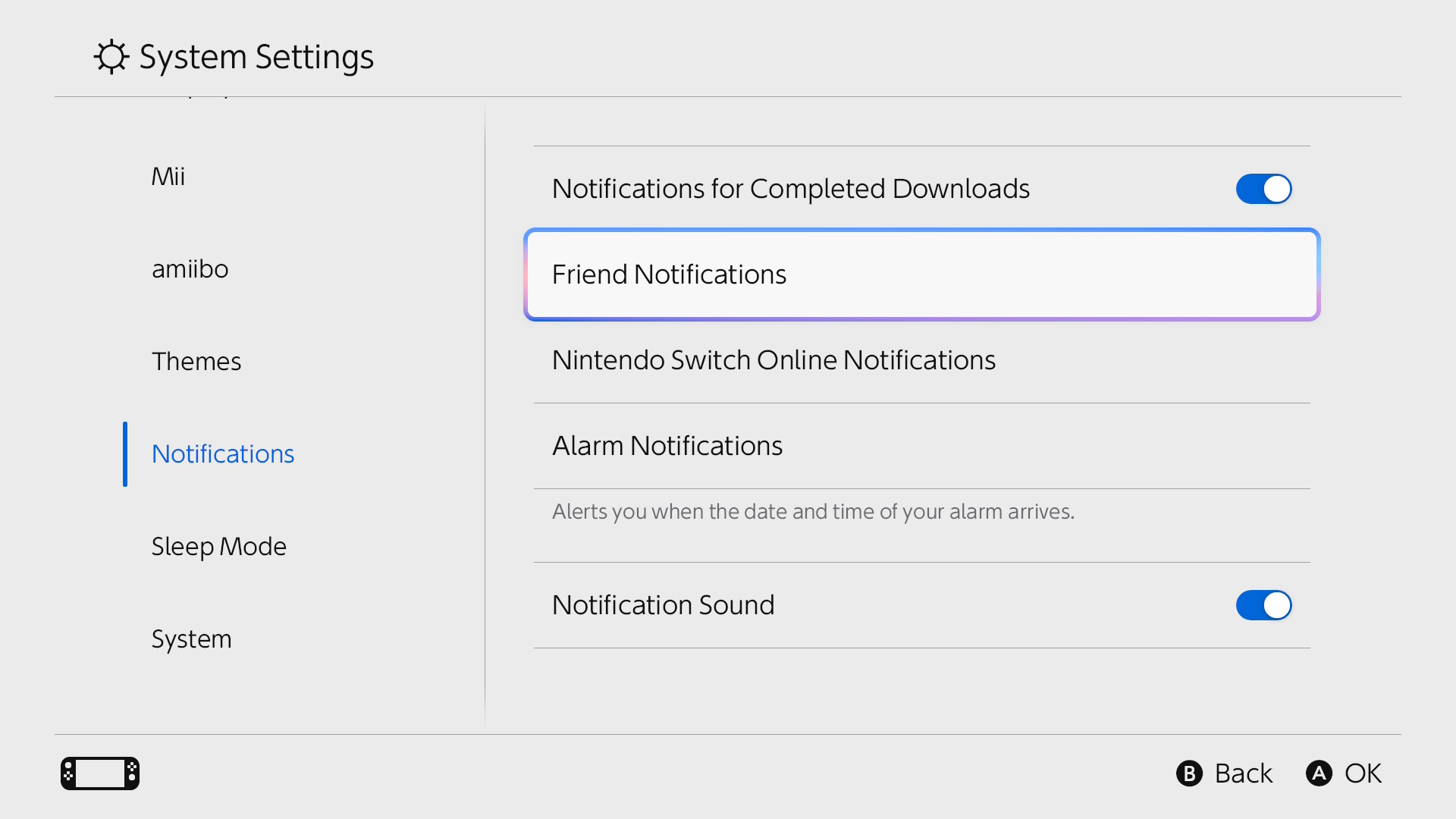
- In-Game System Settings: Before the start of the event, please adjust the following settings in your game and on your console:
Set In-Game Battle Name Settings to "Don't Show"
 |
|
|
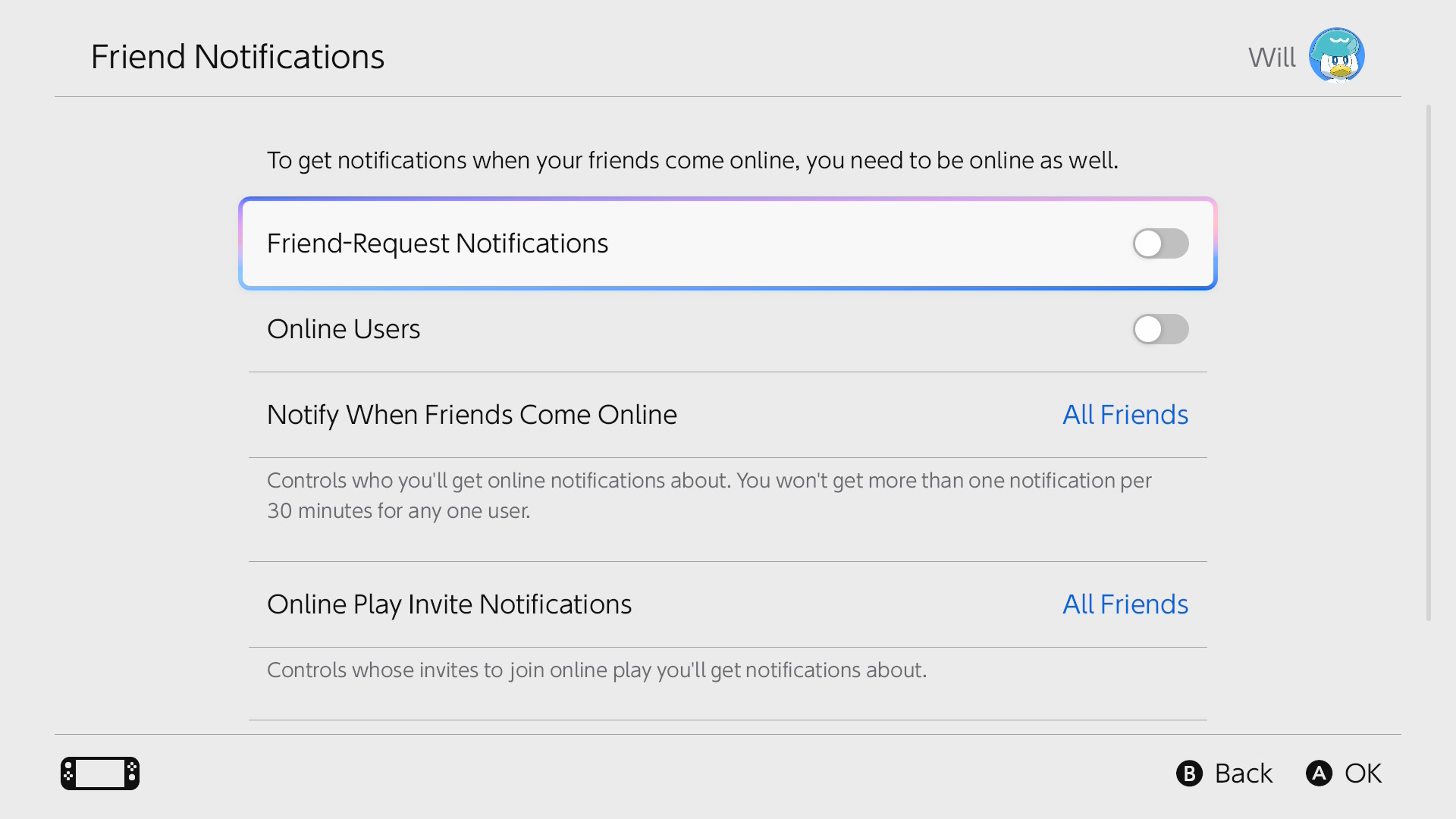
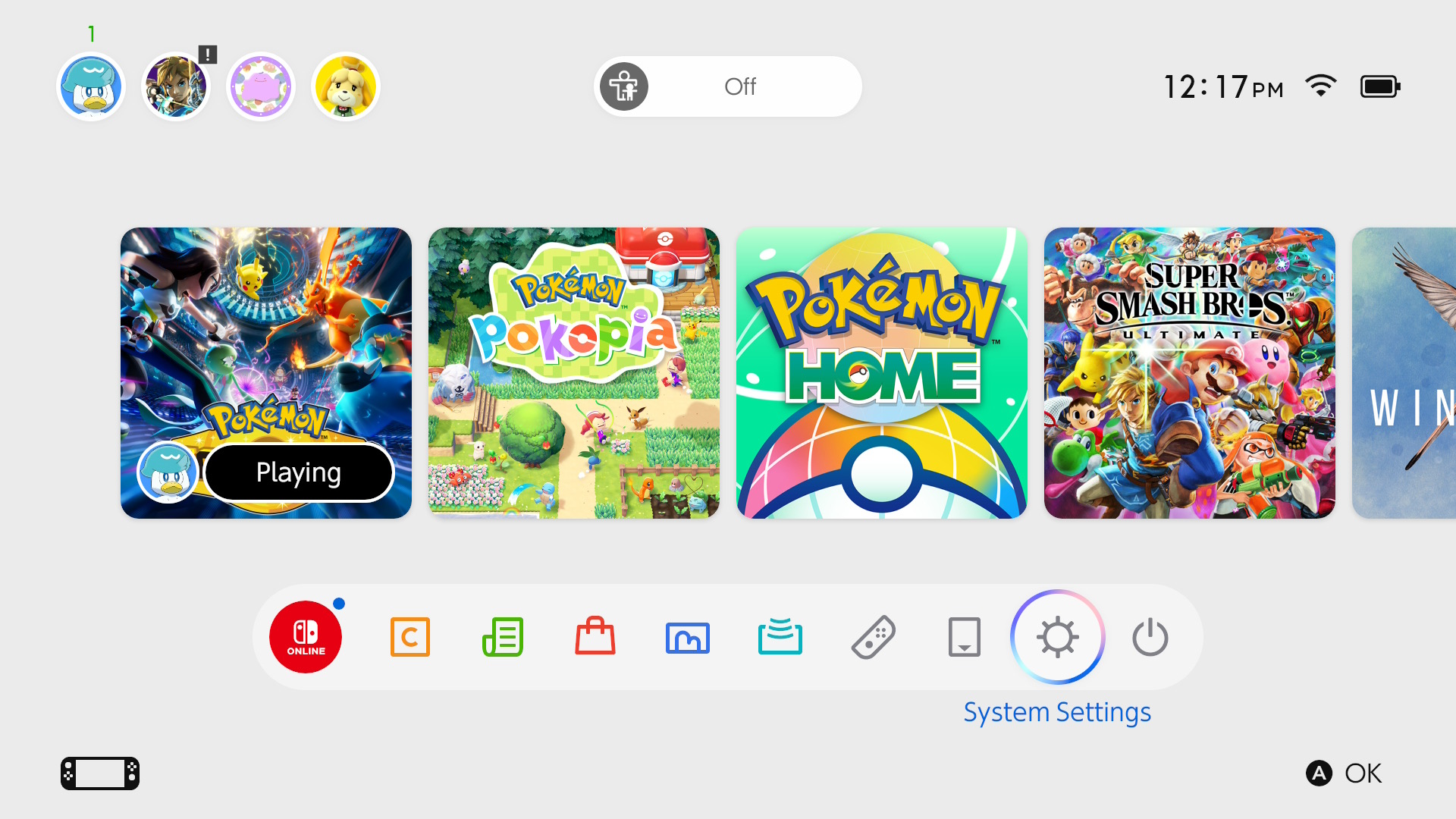
Turn off System Friend Notifications
|
|
|
|
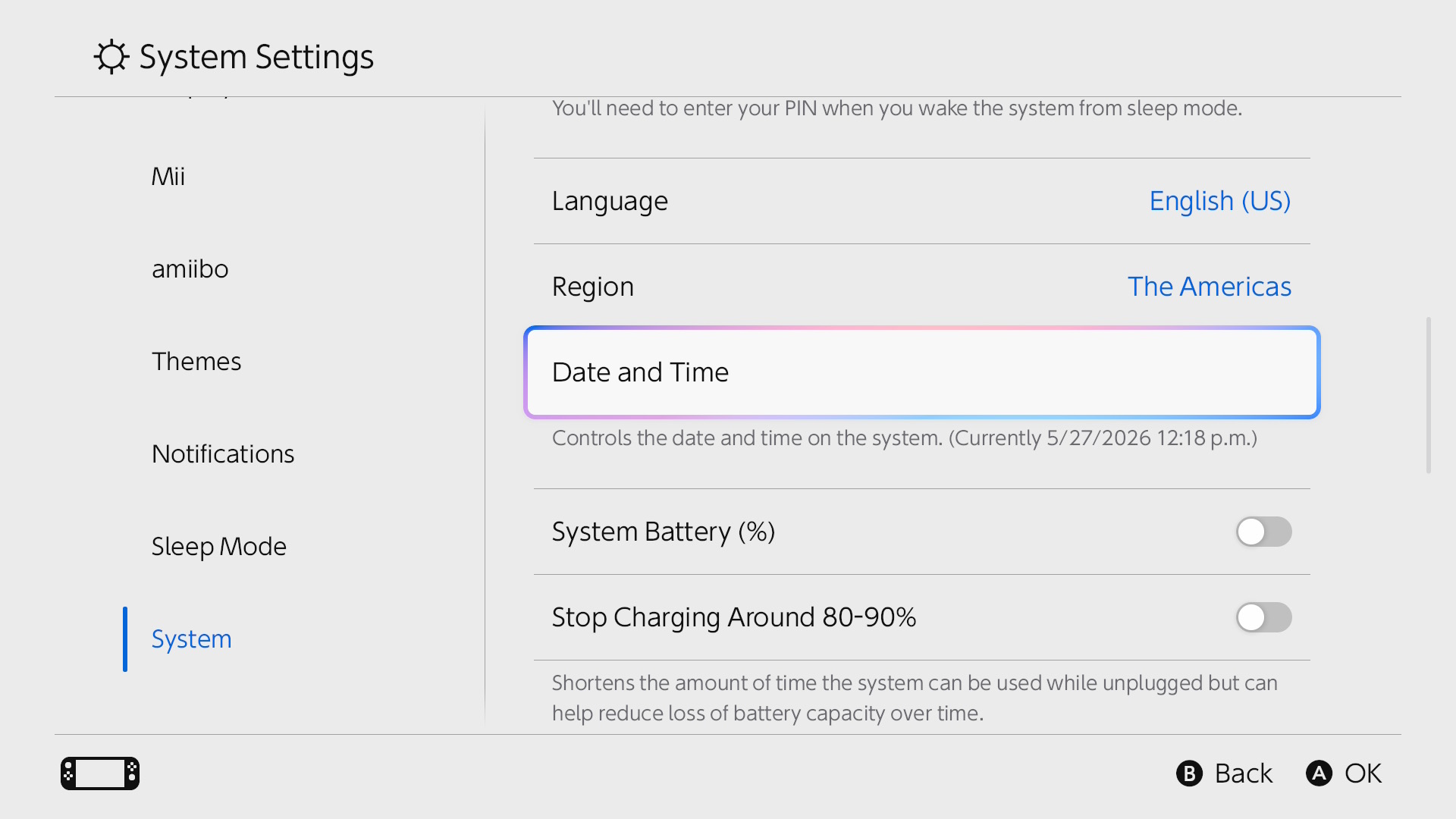
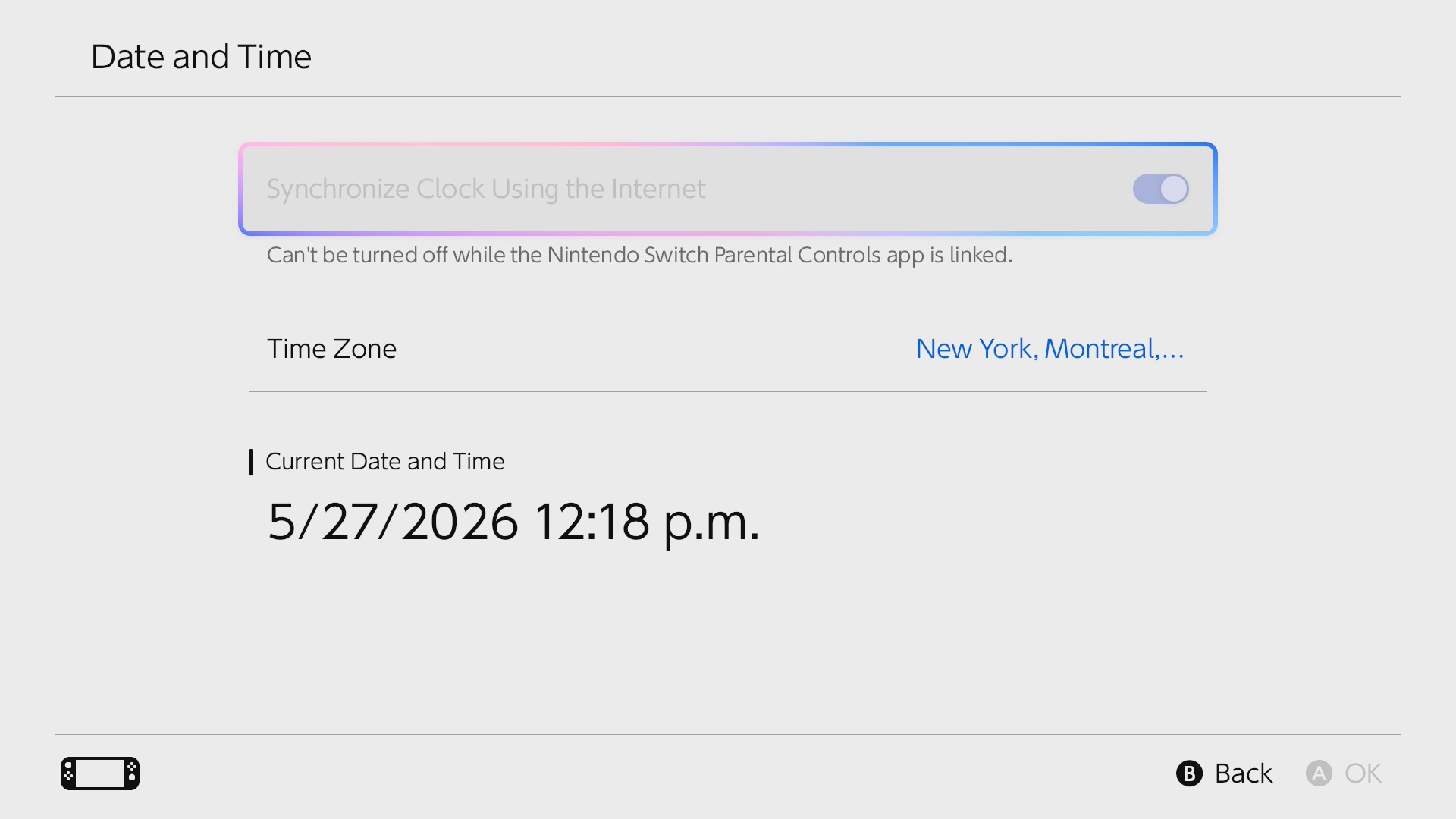
Turn on "Sync Clock via Internet"
|
|
|
|
While At The Event
Below are tips and resources to better help you prepare for your tournament before it even starts.
Be sure to open your Player Tournament Dashboard before the event begins. This is where you can view confirmation that your list has been submitted and also get updates on your pairings throughout the event. To access your Player Tournament Dashboard:
- After logging into RK9.gg, click the dropdown menu found in the top-right corner of your screen.
- Select "Player Dashboard" from the dropdown menu.
- Select the event you're participating in.
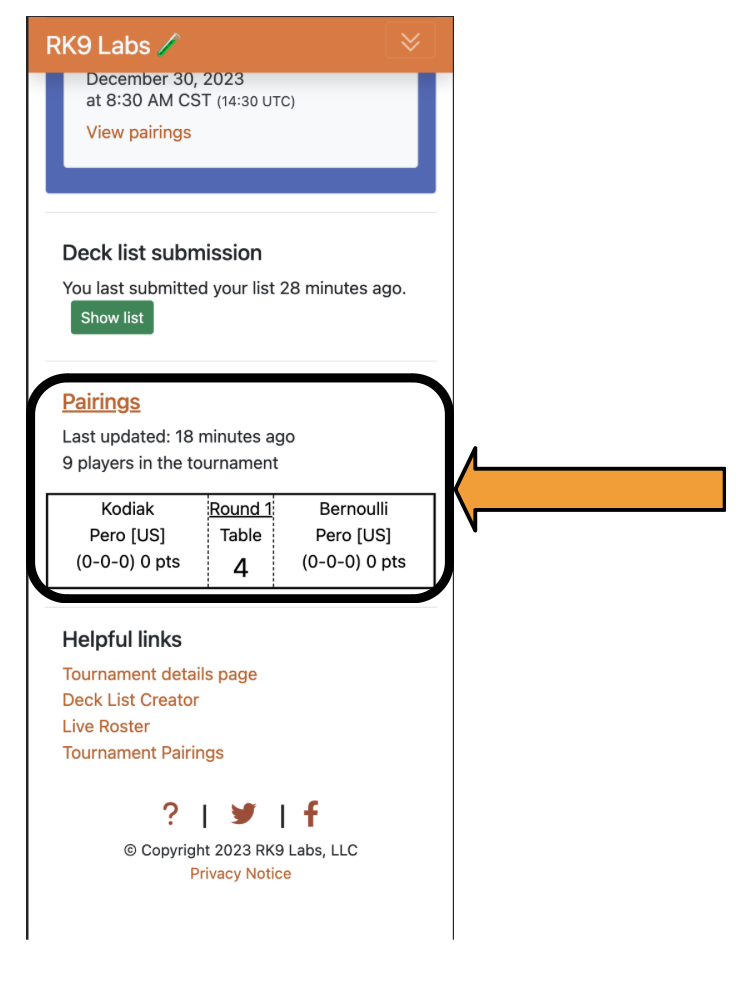
Each round, you will be assigned an opponent. Tournament staff will announce when pairings are available. Refresh your Player Tournament Dashboard, and scroll down to find your opponent and table number.
When you're seated, you'll receive an official "opponent view" team sheet. Please check this sheet carefully to ensure all information is correct. If you notice any errors, contact a judge for assistance!
Make sure you hold on to your team sheet, as it must be shown to your opponent at the start of each tournament round. If you observe your opponent playing with a Pokémon or using an in-game move or item not listed on their "opponent view" team sheet, call a judge!
For your match, you will connect your Nintendo Switch to the dock at your assigned table number. Your Switch should be set to Airplane Mode when playing tournament matches. Do not turn this mode off for any reason during a tournament match. If you notice you are having difficulty with any of your equipment, please notify a Judge immediately.
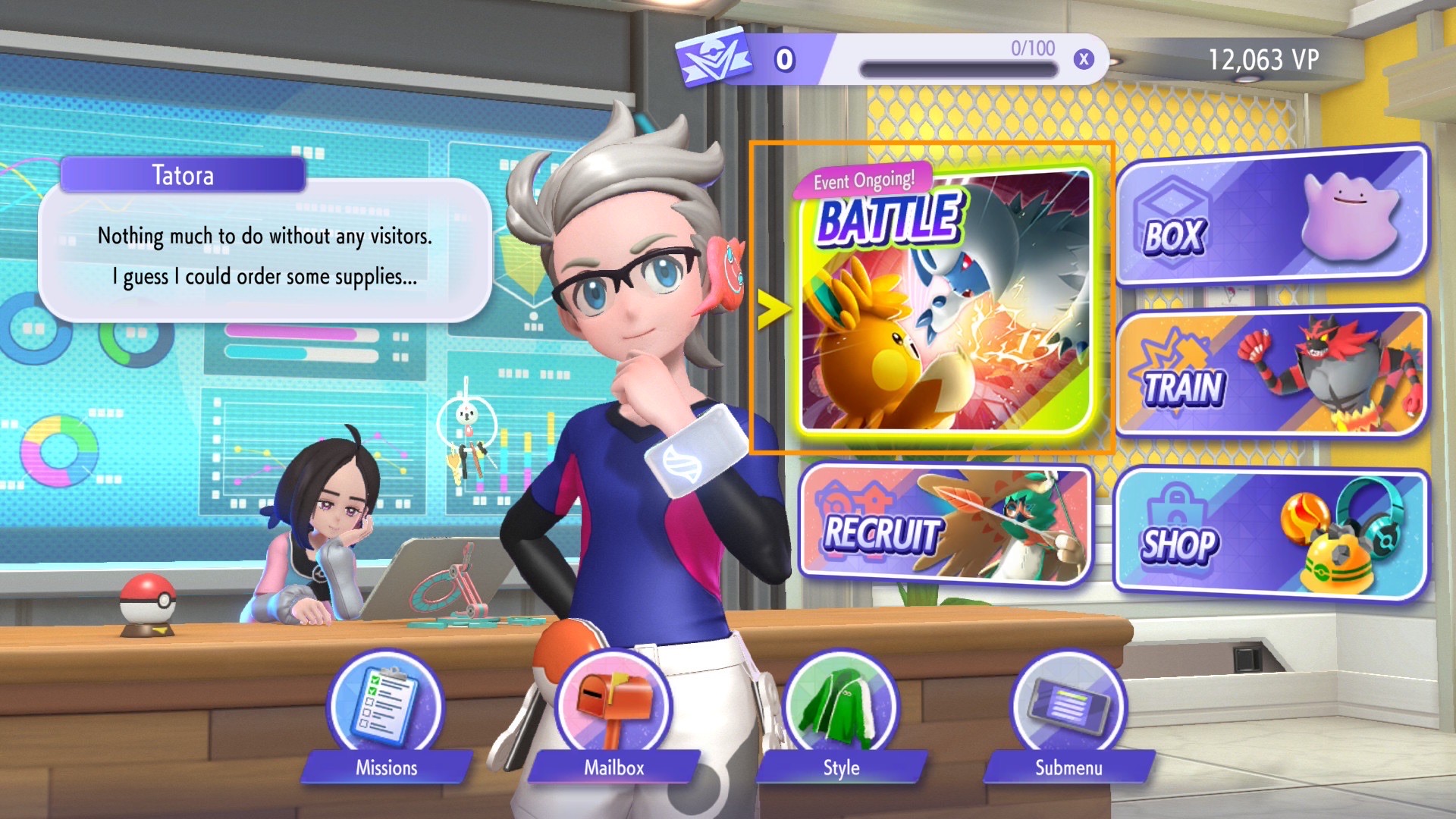
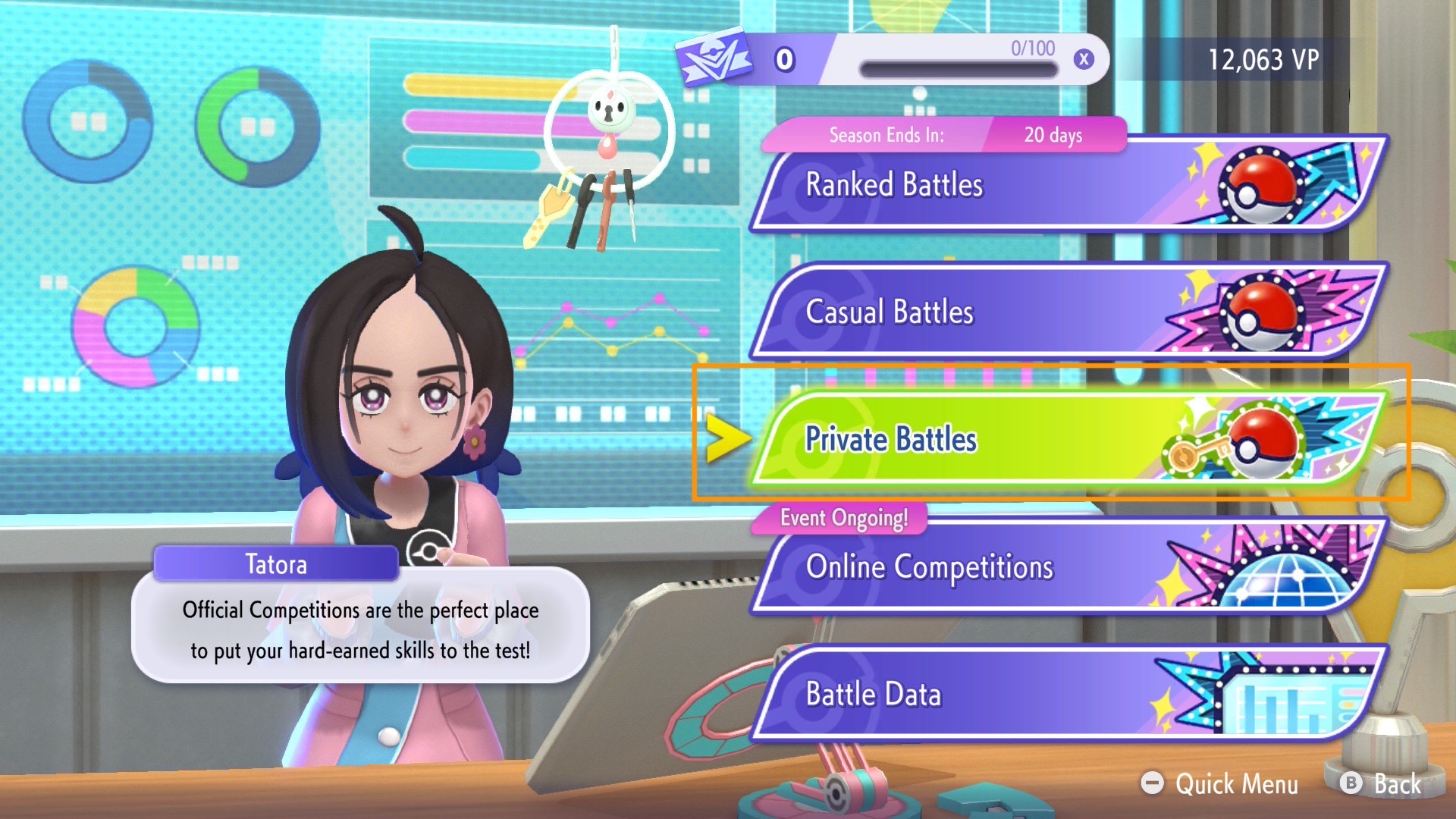
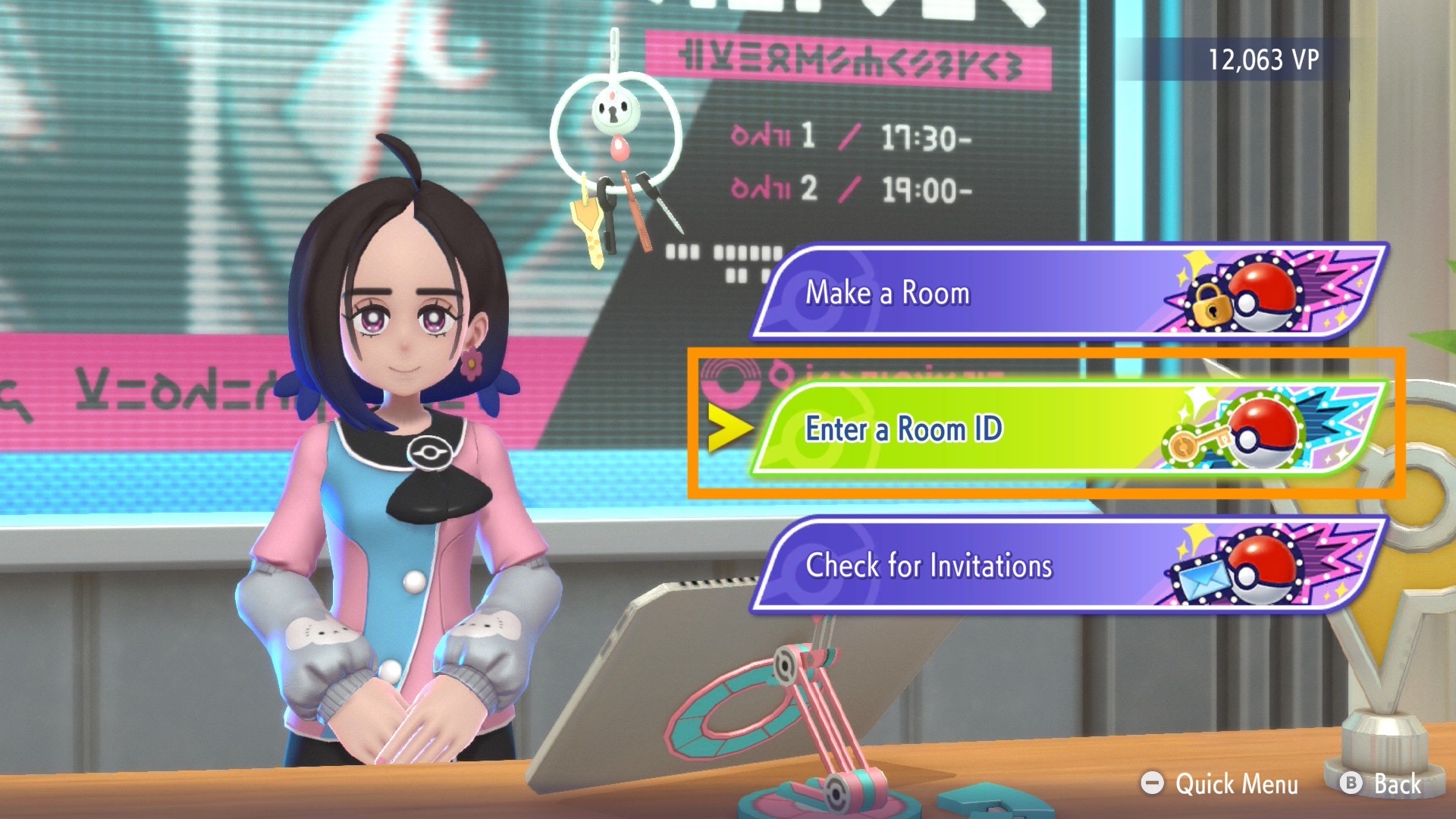
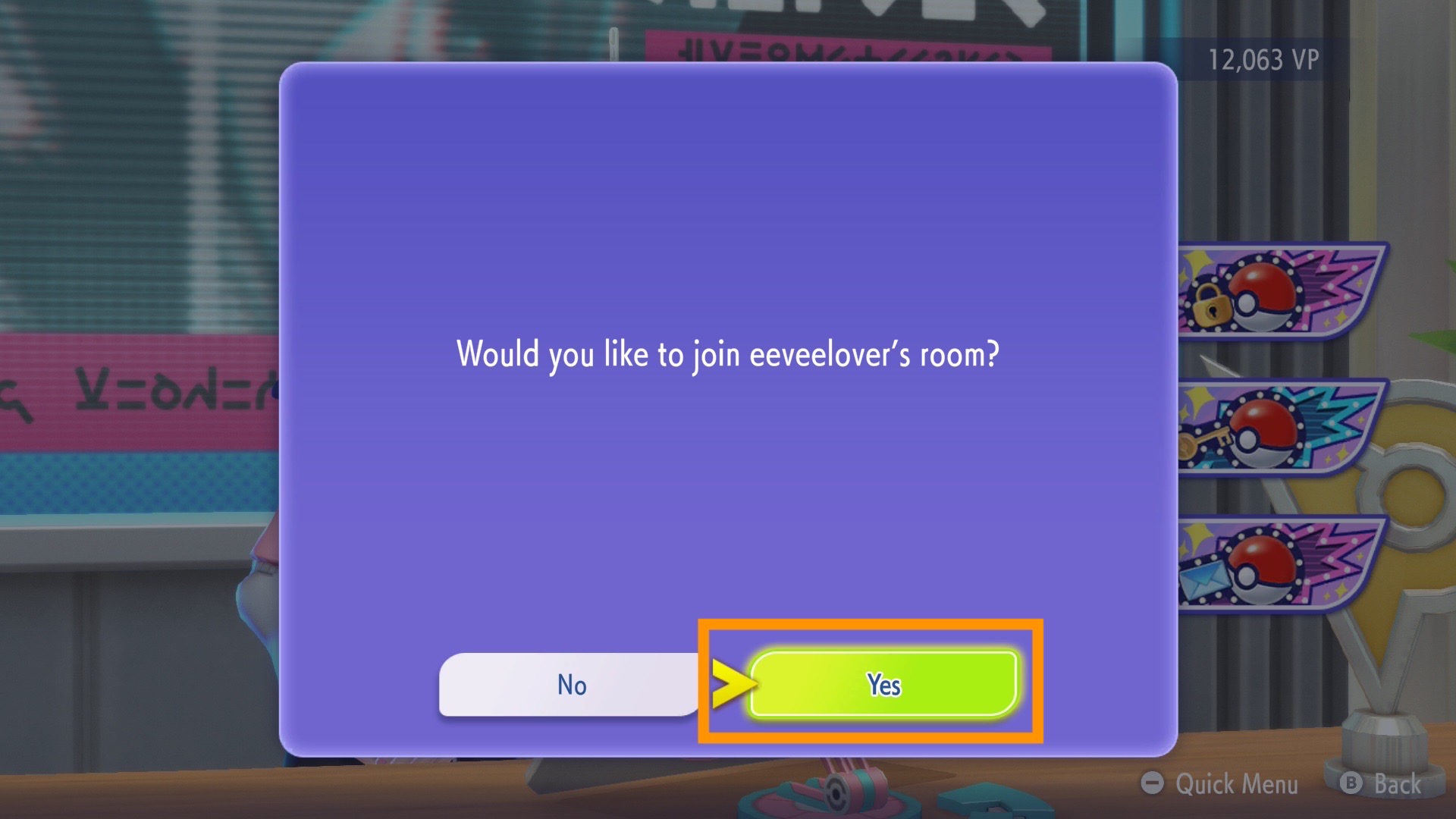
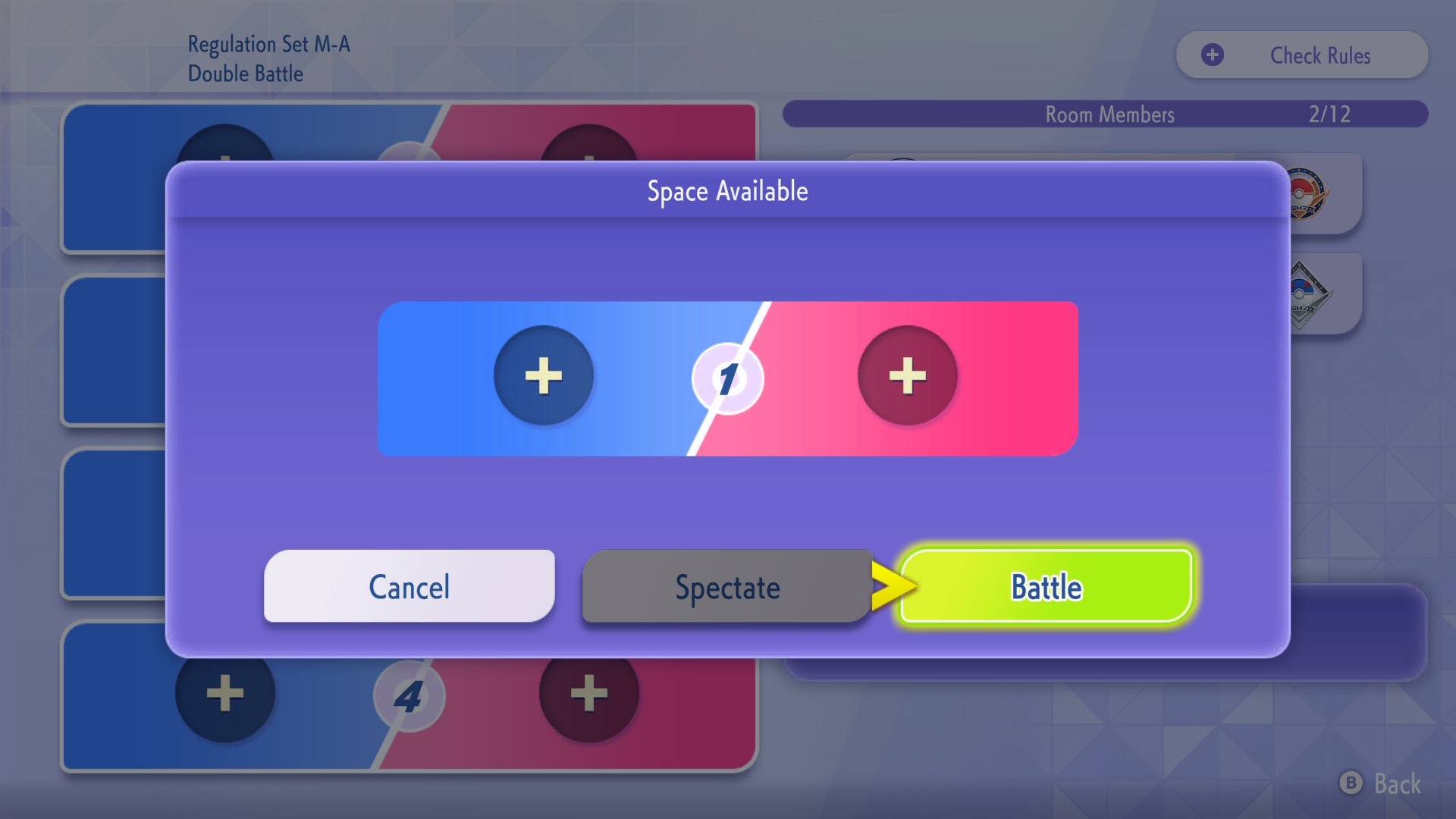
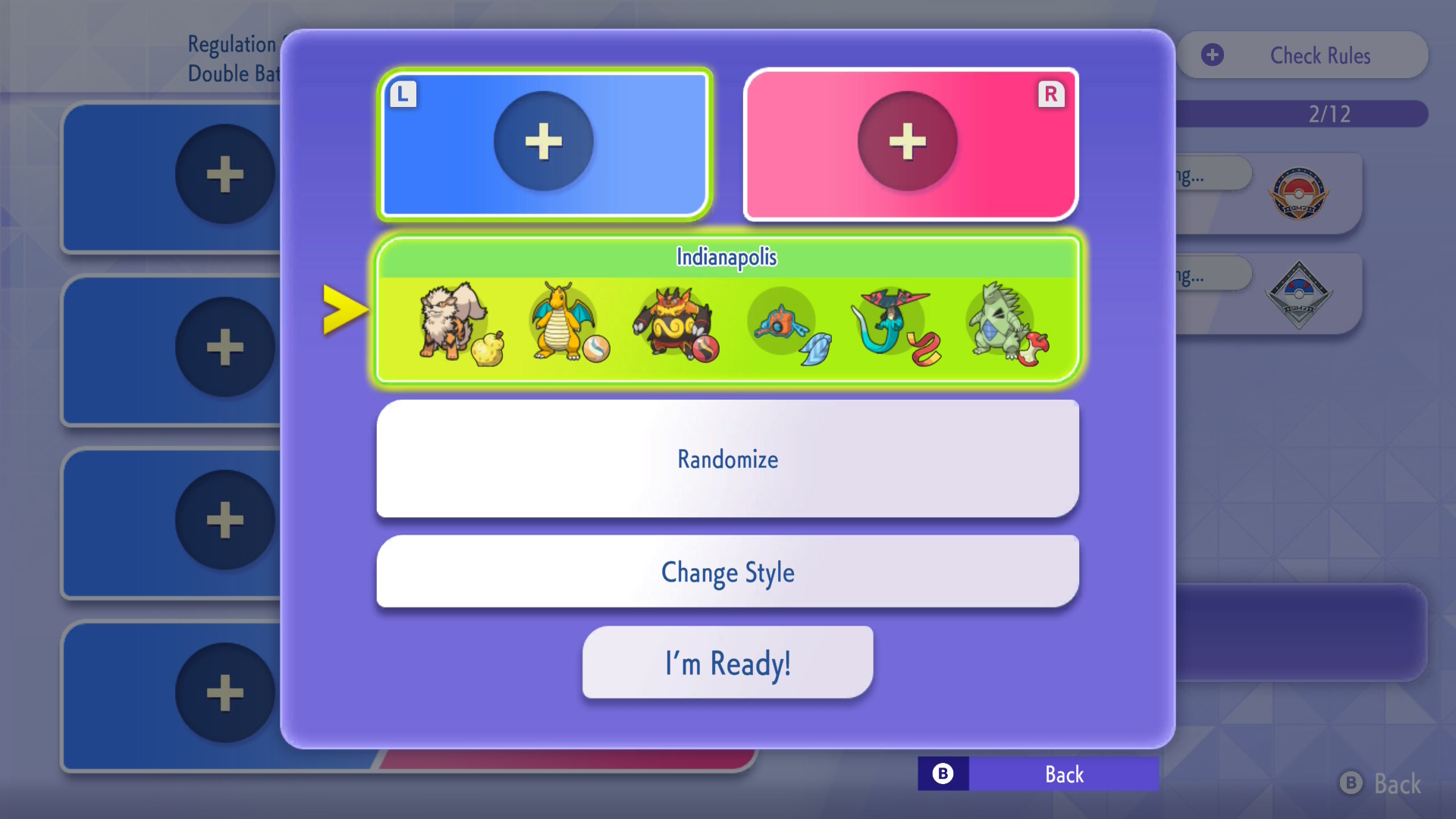
Matches are conducted via Private Battle Rooms! If you haven't set up a Private Battle yet, it's simple:
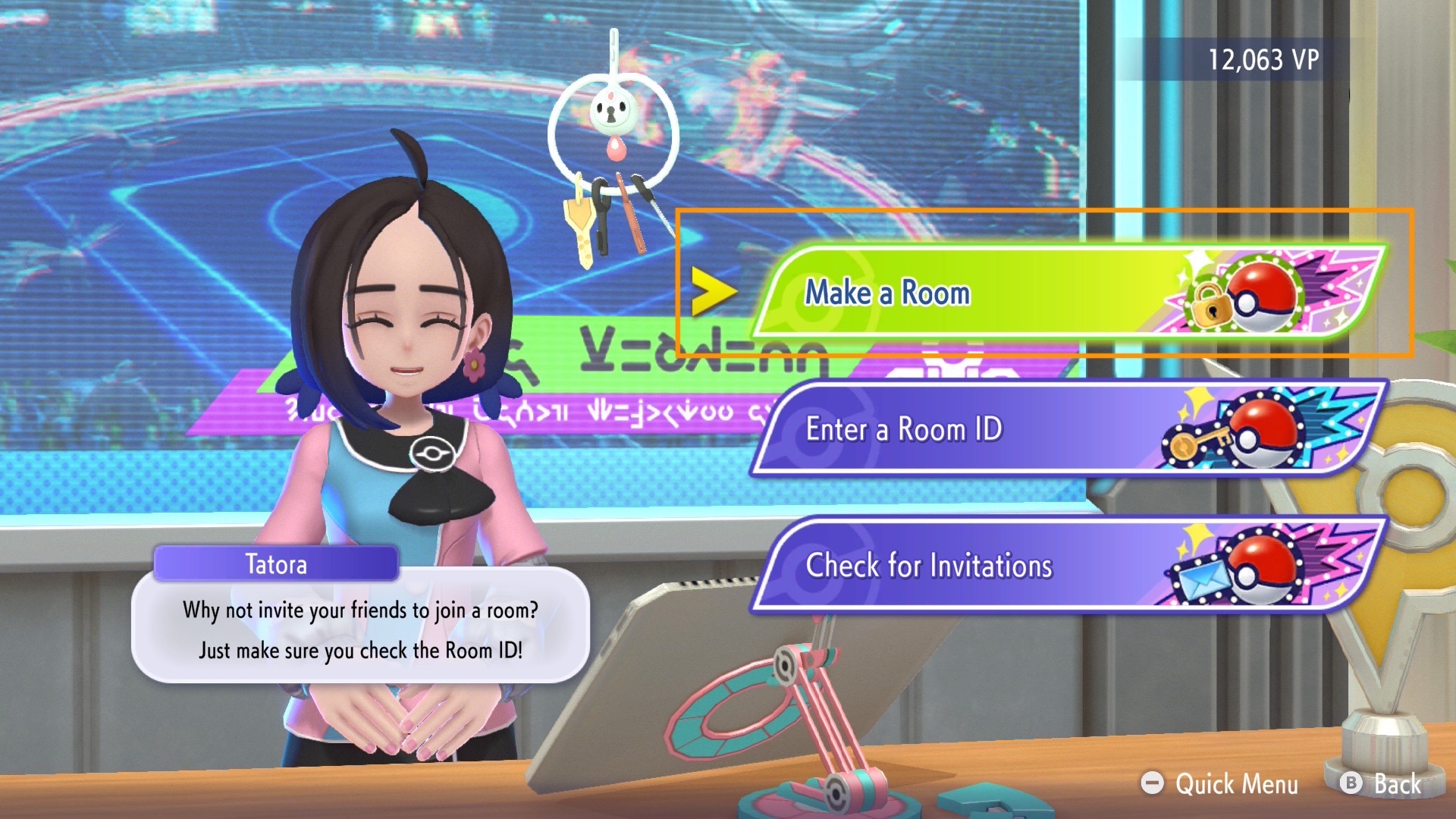
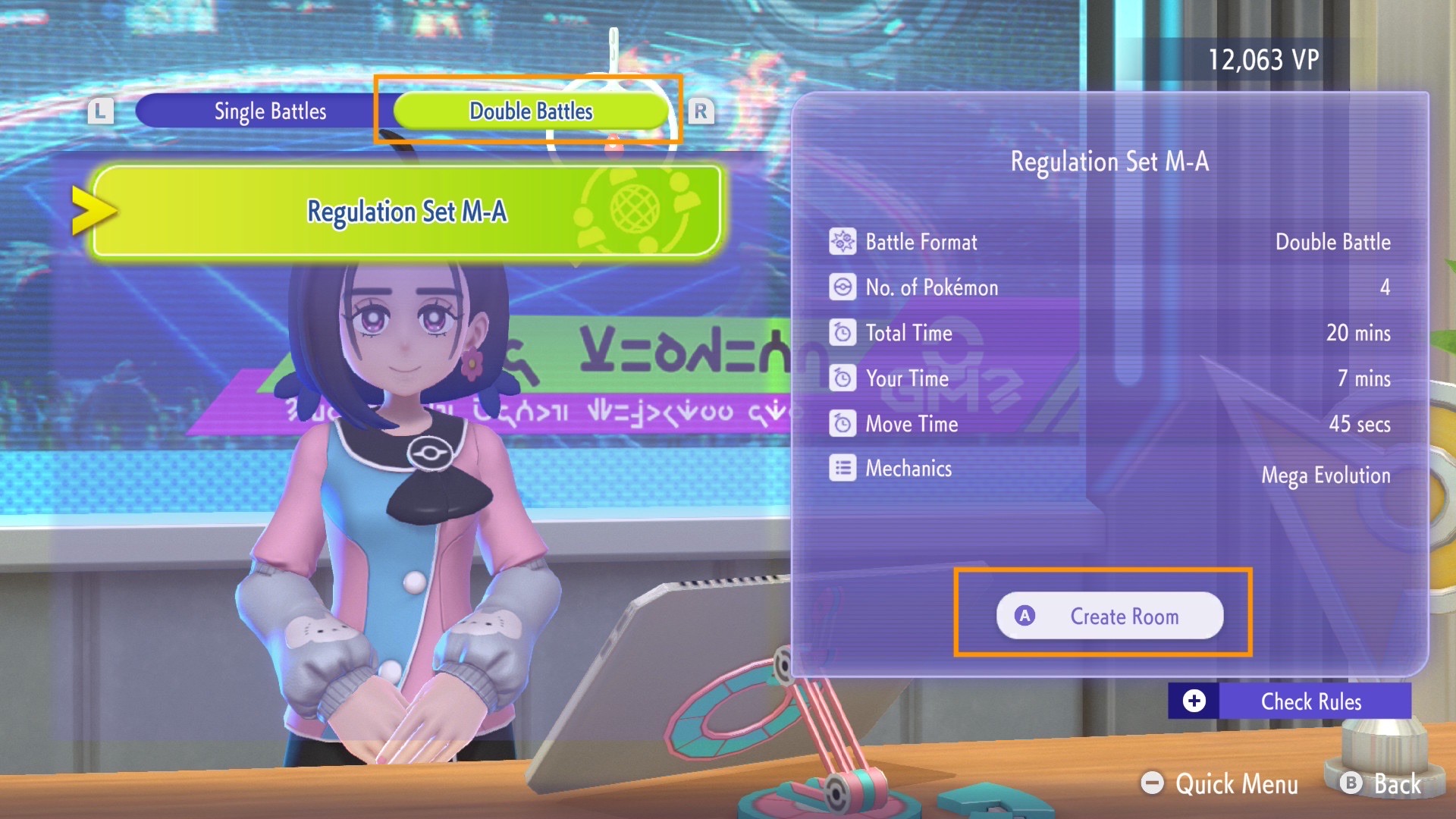
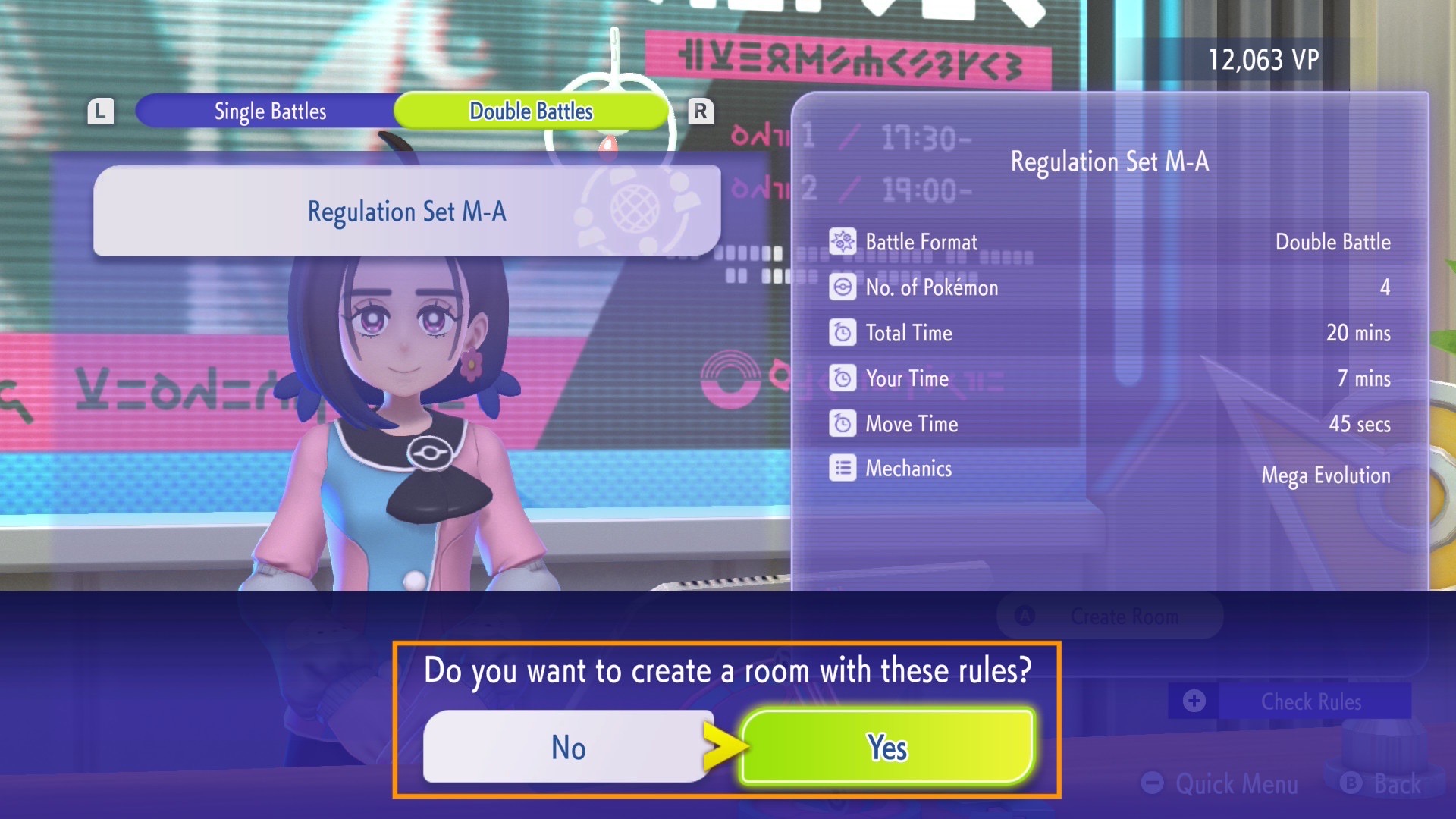
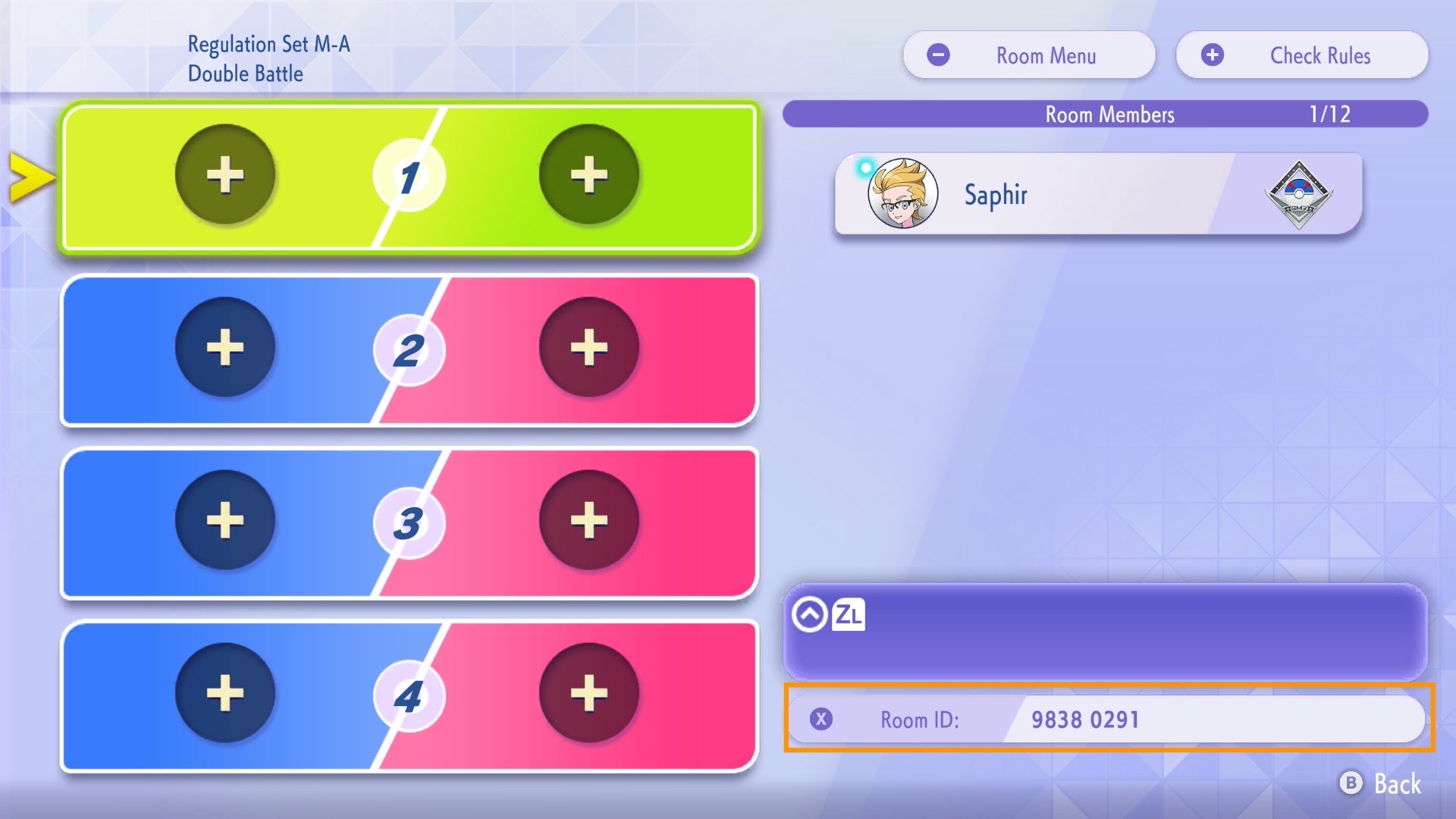
If you're joining a Private Room your opponent has made, you'll want to follow these steps instead:
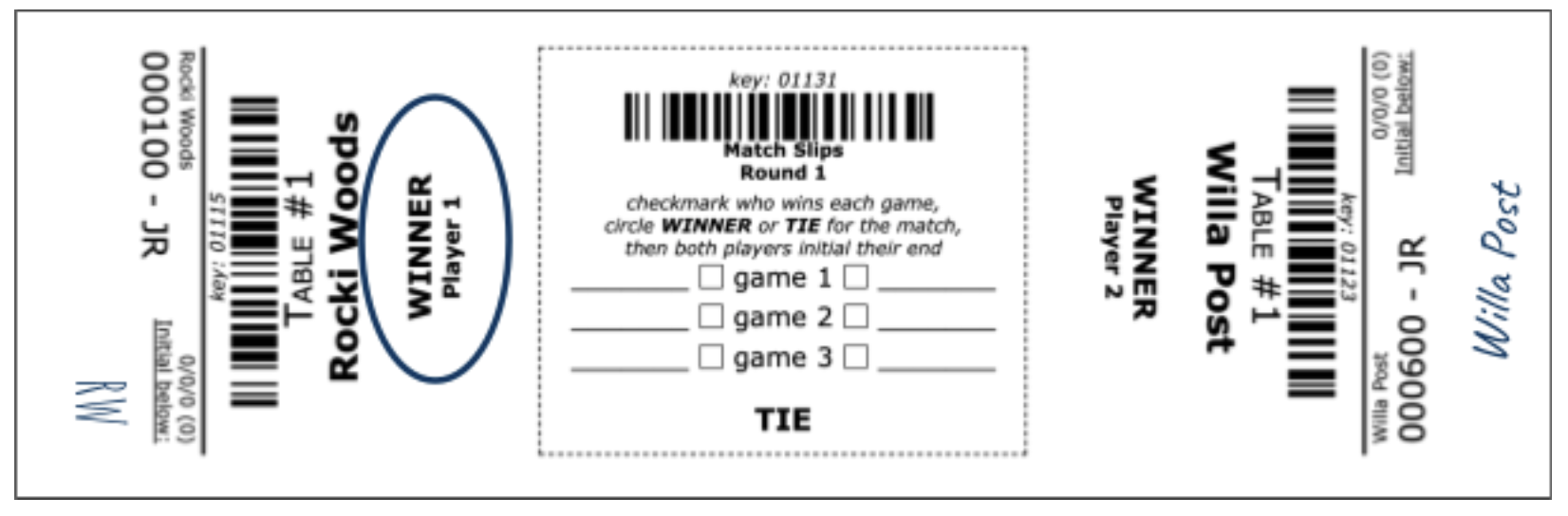
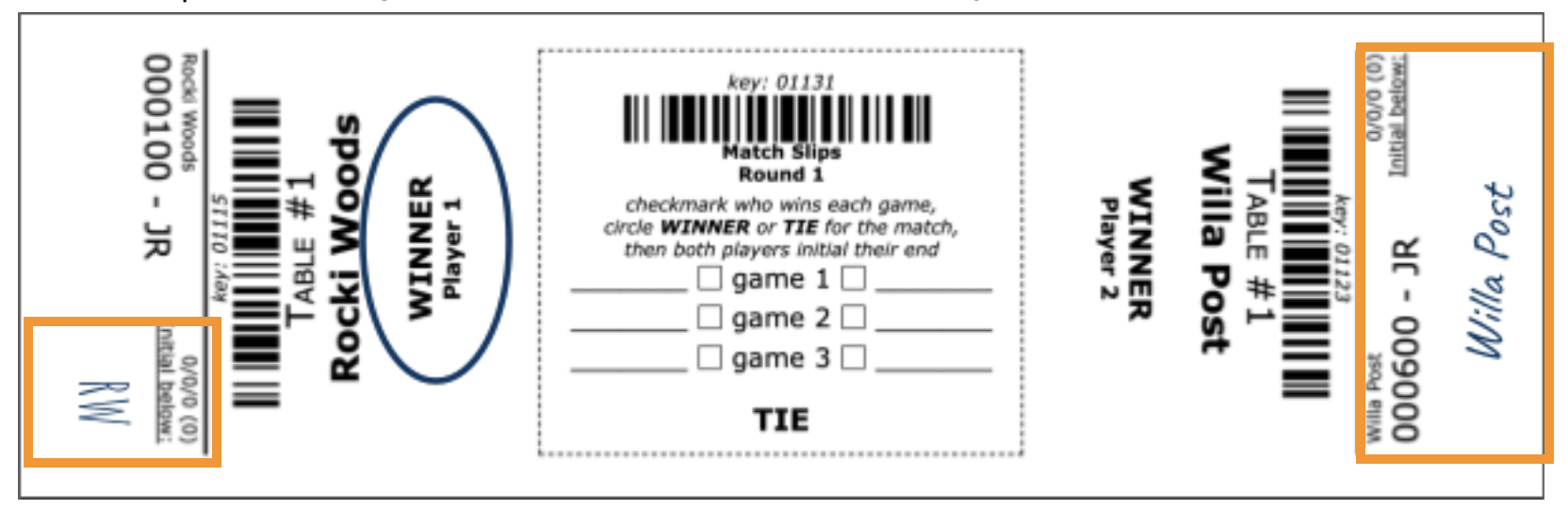
During the round, tournament officials will distribute match slips for you and your opponent to record and confirm your match result. You and your opponent are responsible for making sure the match slip is accurately completed and signed with one WINNER circled. The winner is then responsible for taking the match slip to the match slip turn-in area.